Gérer les cookies utilisés pour la publicité, tels que la personnalisation des annonces, le remarketing et l’analyse des performances des annonces.
4.3.9.4. Set up Evolution mail client (Linux)
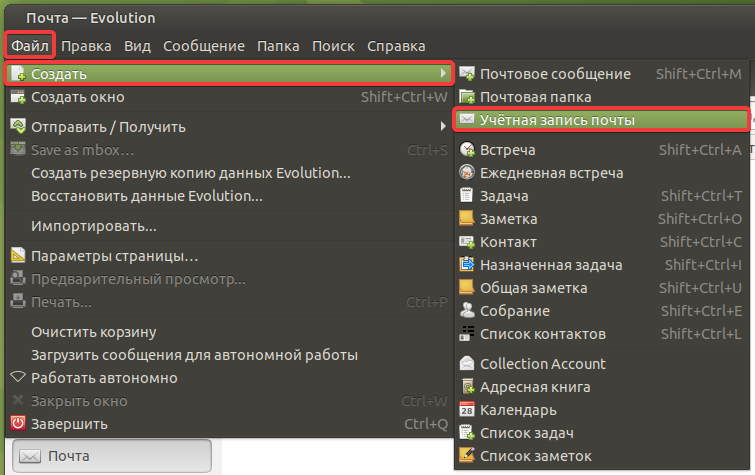
- In the top menu, select "File → Create → Mail account":
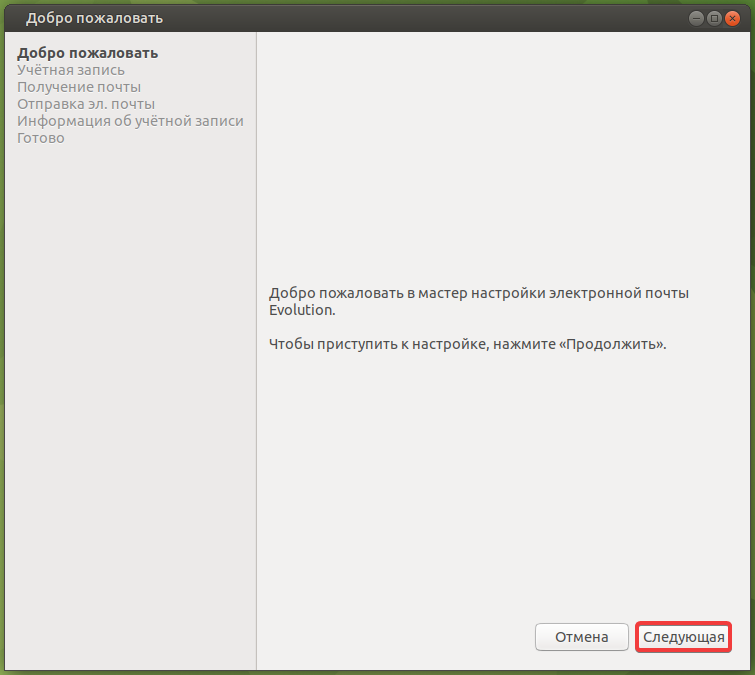
- On the welcome page, click "Next":
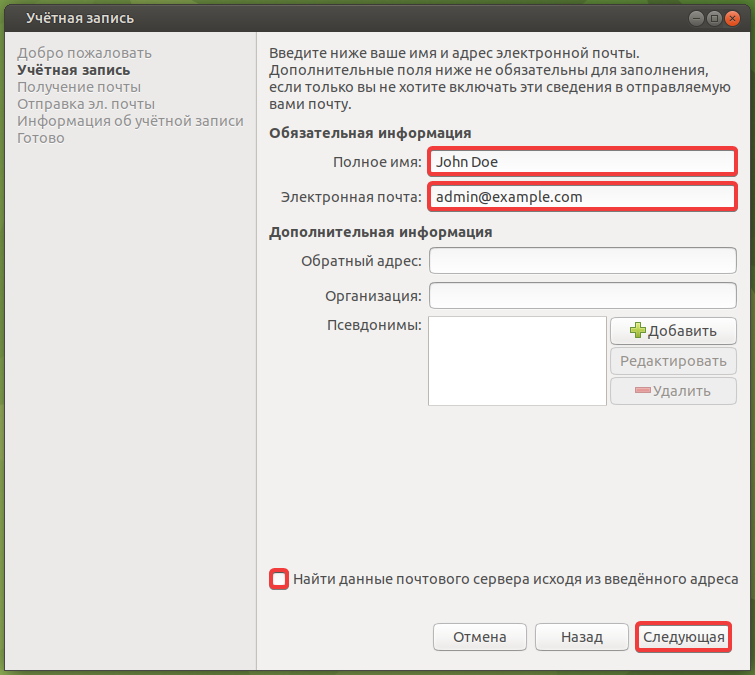
- Enter your name, mailbox name, disable "Find mail server settings using the email address you entered" and click "Next":
- Specify the incoming mail settings and click "Next":
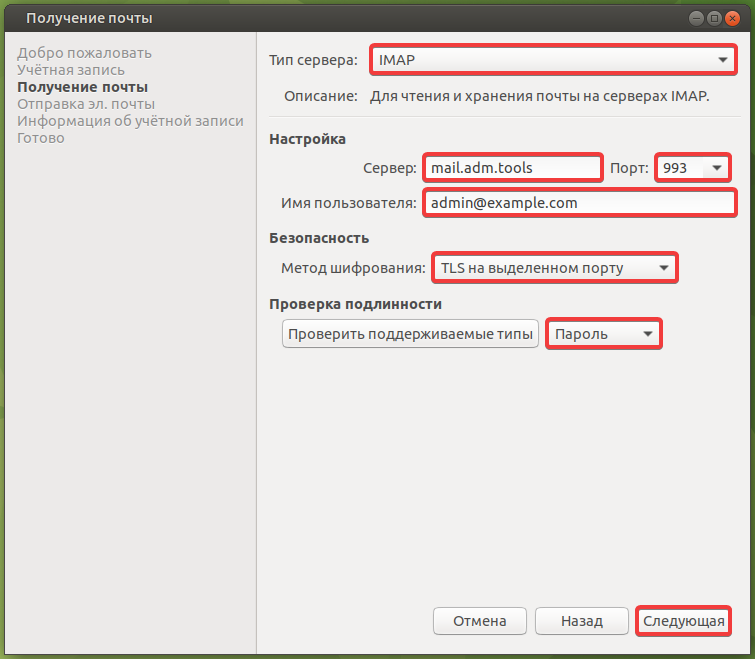
- "Server type" — "IMAP".
- "Server" —
mail.adm.tools. - "Port" —
993. - "Username" — mailbox name.
- "Encryption method" — "TLS on a dedicated port".
- Authentication type — "Password".
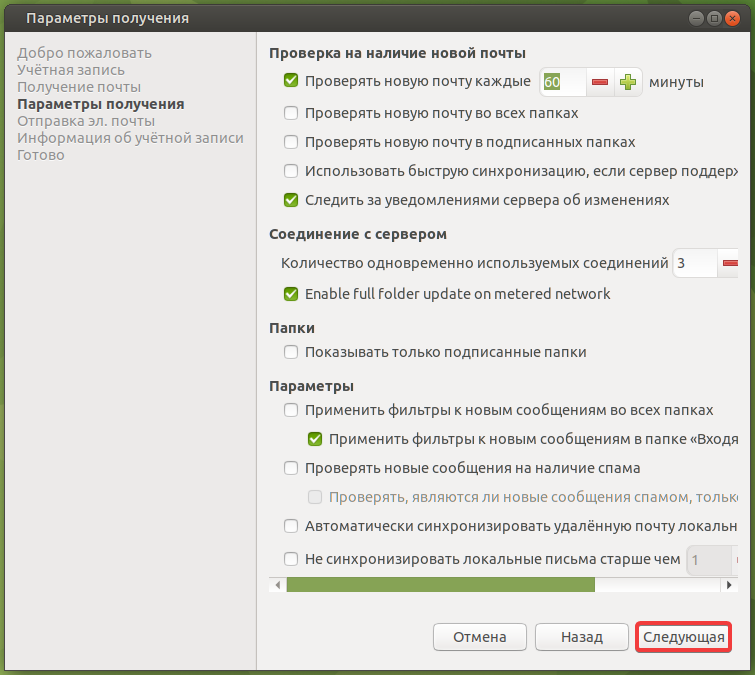
- Specify the desired receiving parameters (optional) and click "Next":
- Specify the outgoing mail settings and click "Next":
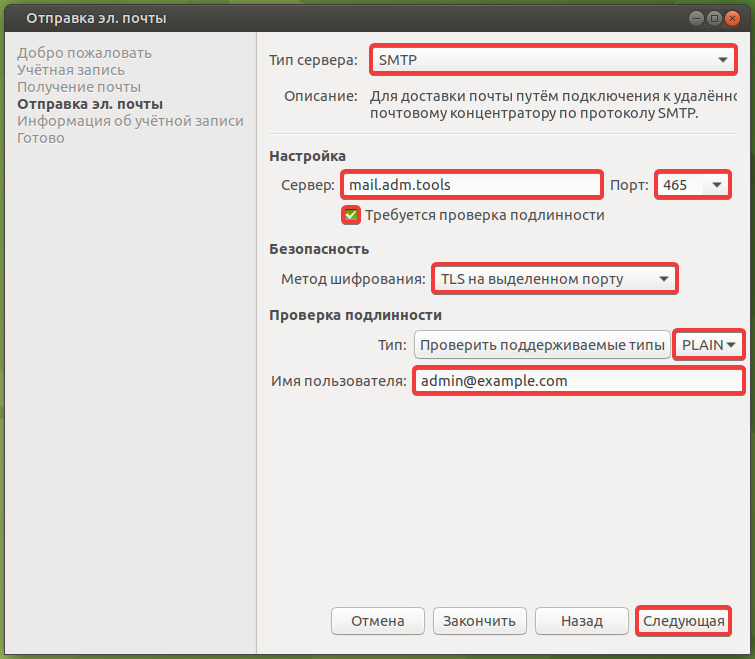
- "Server type" — "SMTP".
- "Server" —
mail.adm.tools. - "Port" —
465. - "Authentication required" — enabled.
- "Encryption method" — "TLS on a dedicated port".
- Authentication type — "PLAIN".
- "Username" — mailbox name.
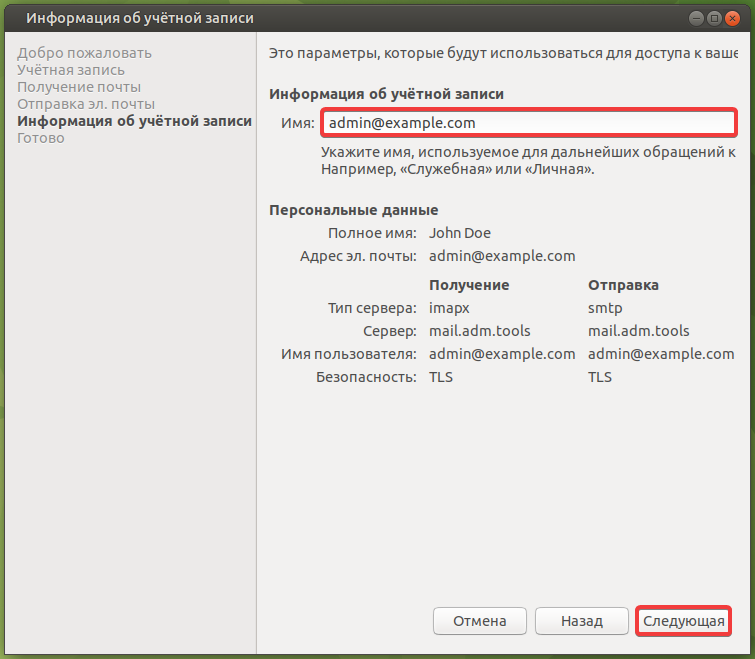
- Enter any name for the account and click "Next":
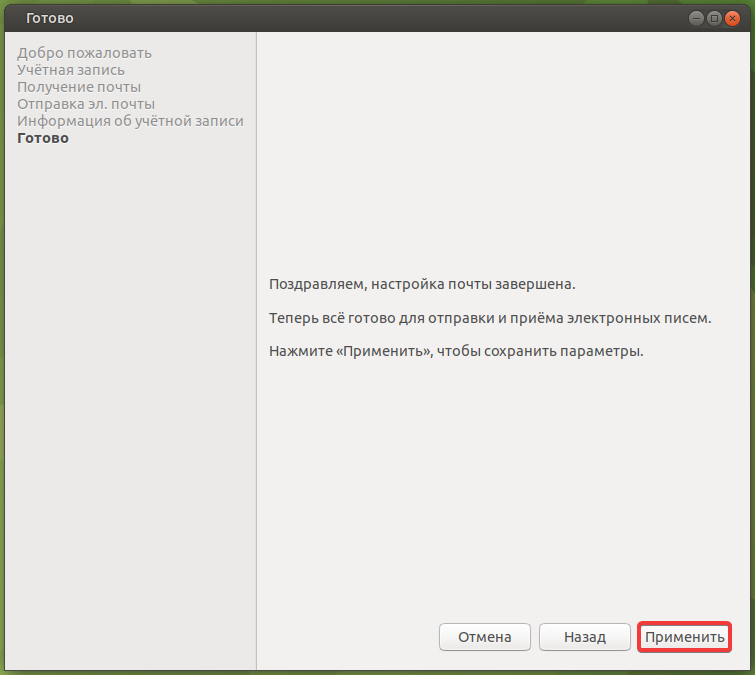
- Click "Apply":
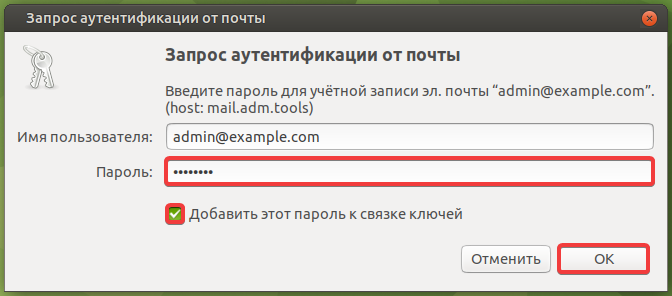
- In the authentication prompt window that appears, enter your mailbox password (if you do not want to enter your password each time you connect to the server, enable "Add this password to the key ring") and click "OK":
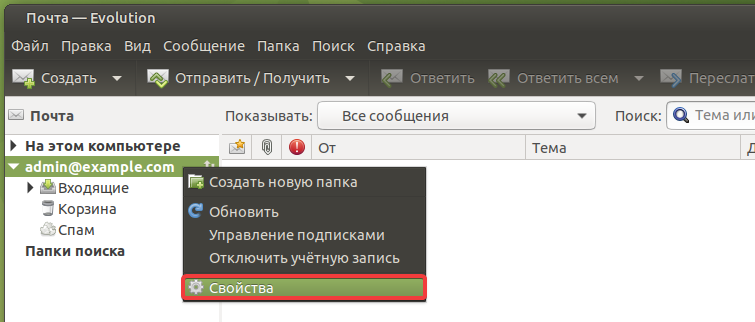
- In the main window, right-click on the added account and select "Properties":
- In the "Default" section, specify the standard folders and click "OK":
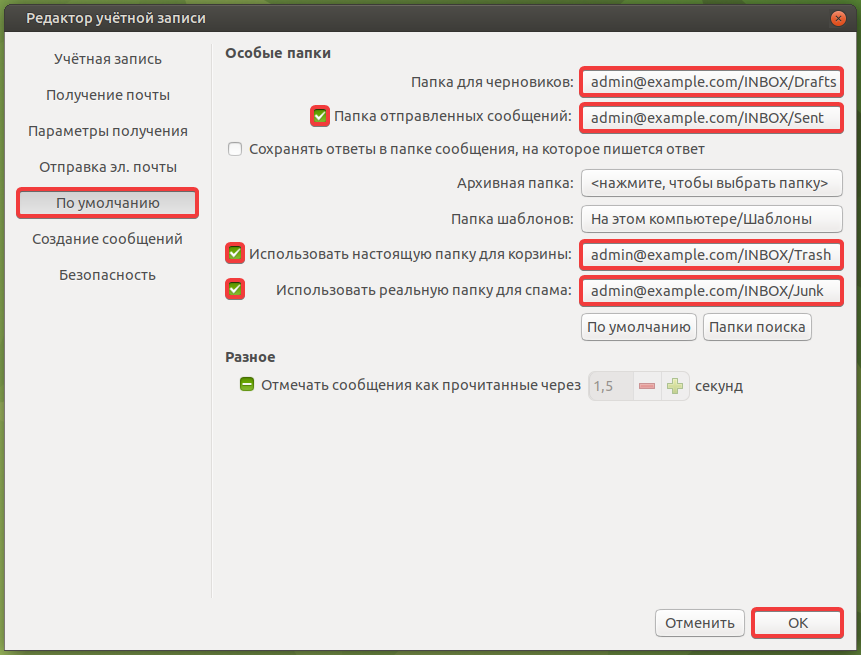
- "Drafts folder" — select "Inbox → Drafts" for your mailbox.
- "Sent folder" — enable and select "Inbox → Sent" for your mailbox.
- "Use this folder for Trash" — enable and select "Inbox → Trash" for your mailbox.
- "Use real folder for spam" — enable and select "Inbox → Junk" for your mailbox.
- Check the mail operation.