Gérer les cookies utilisés pour la publicité, tels que la personnalisation des annonces, le remarketing et l’analyse des performances des annonces.
5.3.15. Change root password on VPS
Control panel
Important points:
- For Linux servers only.
- The server must be accessible for connection from our control panel using WebSSH.
Open the "VPS" section and on the "SSH / VNC" tab, click "Change password":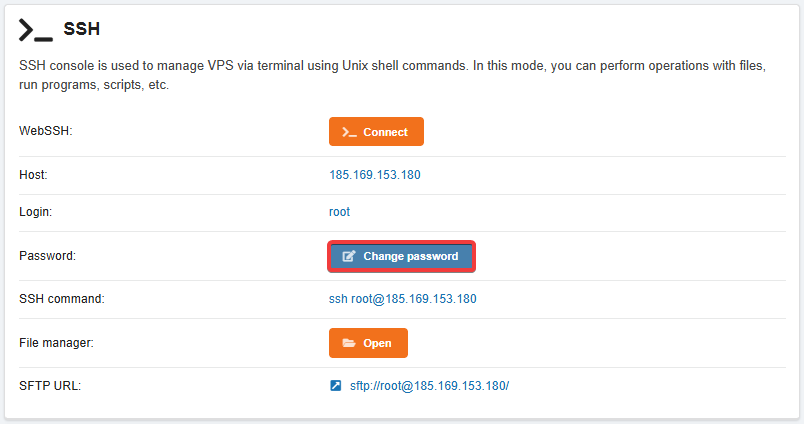
SystemRescue
Important points:
- For Linux servers only.
- On Dedicated, manual password reset is performed similarly to this instruction, except that boot in Rescue Mode is used instead of connecting an image and KVM is used instead of VNC.
- Connect to the server the SystemRescue image (always available by default in the image list).
- Reboot server.
- Connect to the server via VNC.
- In the SystemRescue main menu, select "Boot SystemRescueCd using default options":
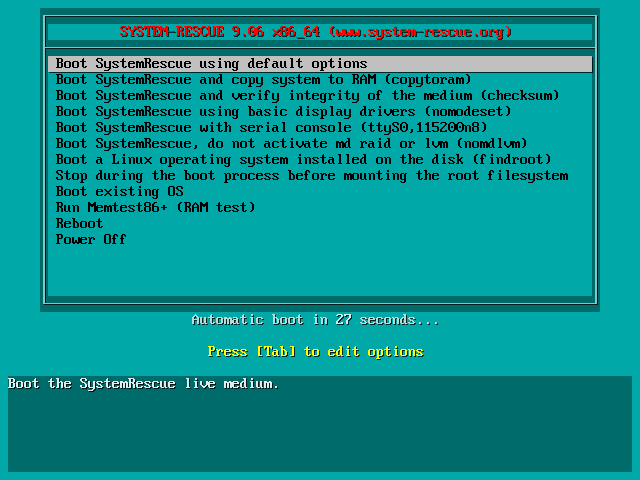
- Identify the disk on which the OS is located (usually the largest disk):
fdisk -l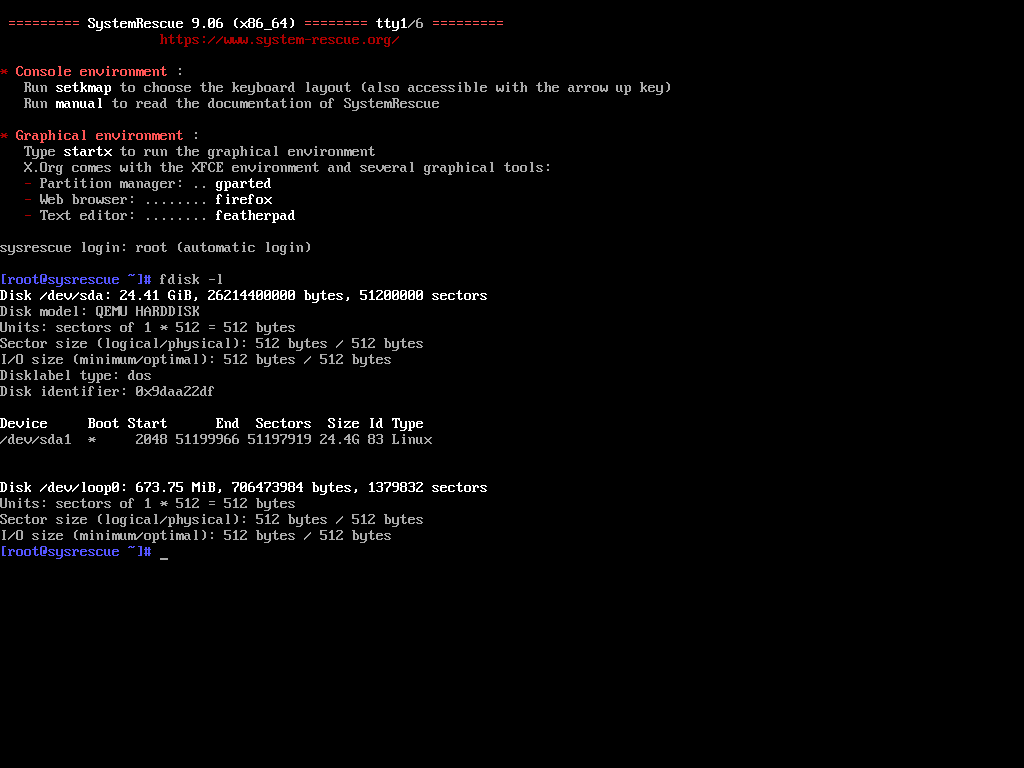
- Create a directory to mount the OS disk:
mkdir /mnt/root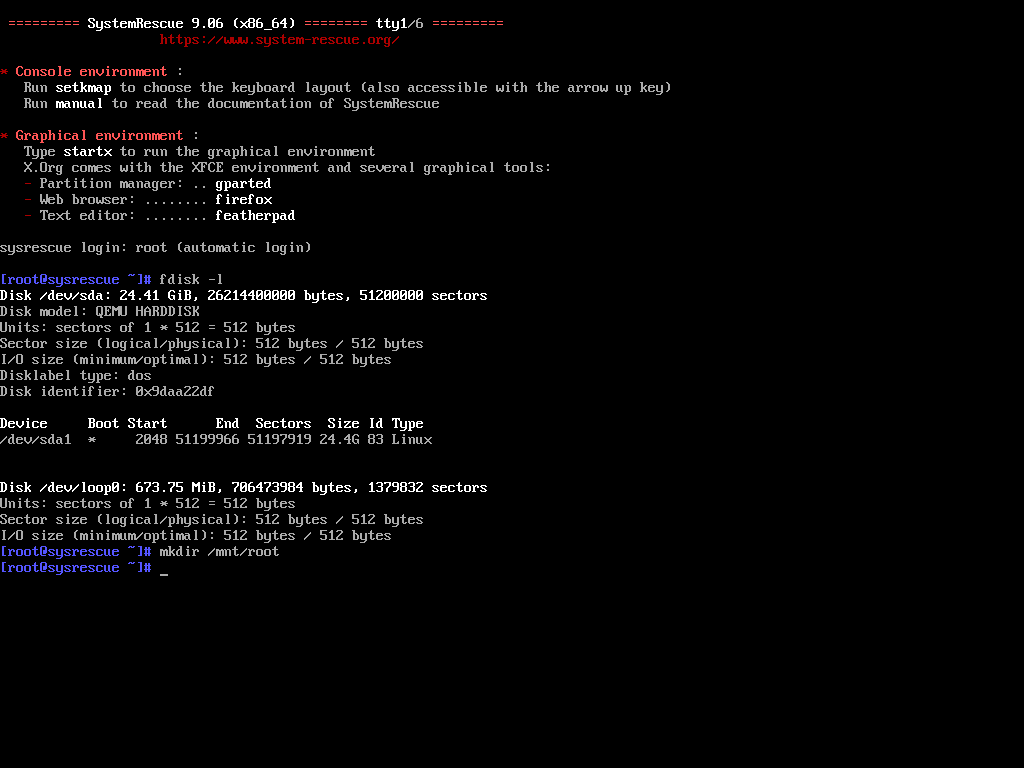
- Mount the OS disk (instead of
/dev/sda1, specify your disk from the "Device" column in thefdiskoutput):mount /dev/sda1 /mnt/root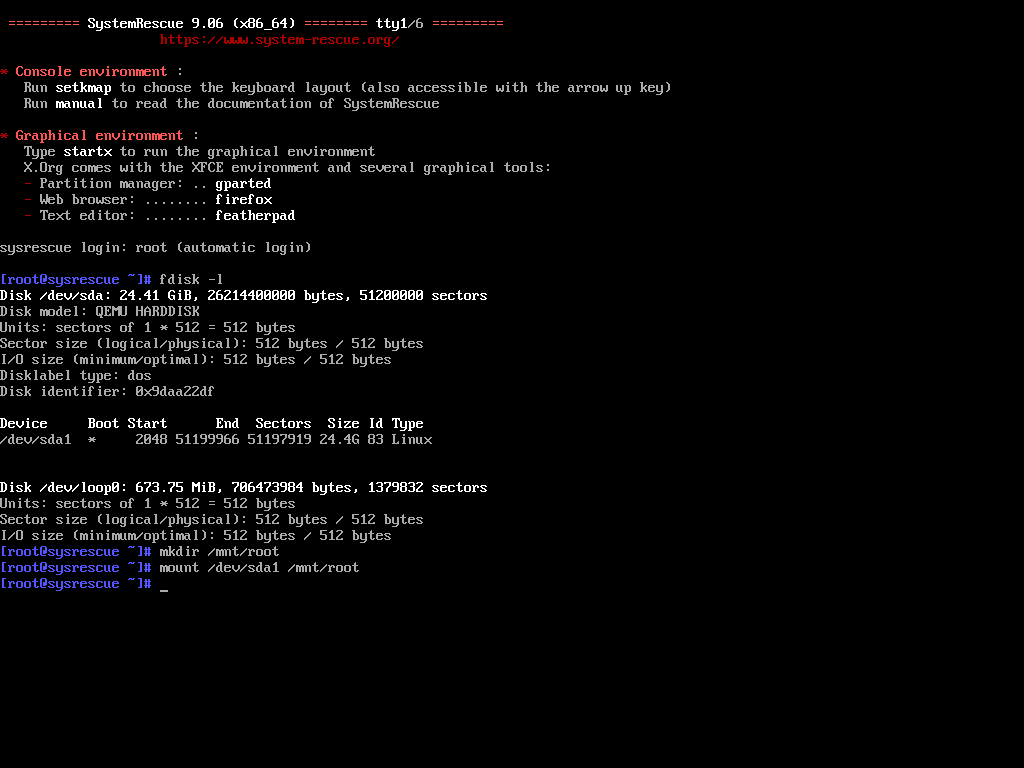
- Change the root directory from SystemRescue to the directory of the mounted disk with the OS.:
chroot /mnt/root /bin/bash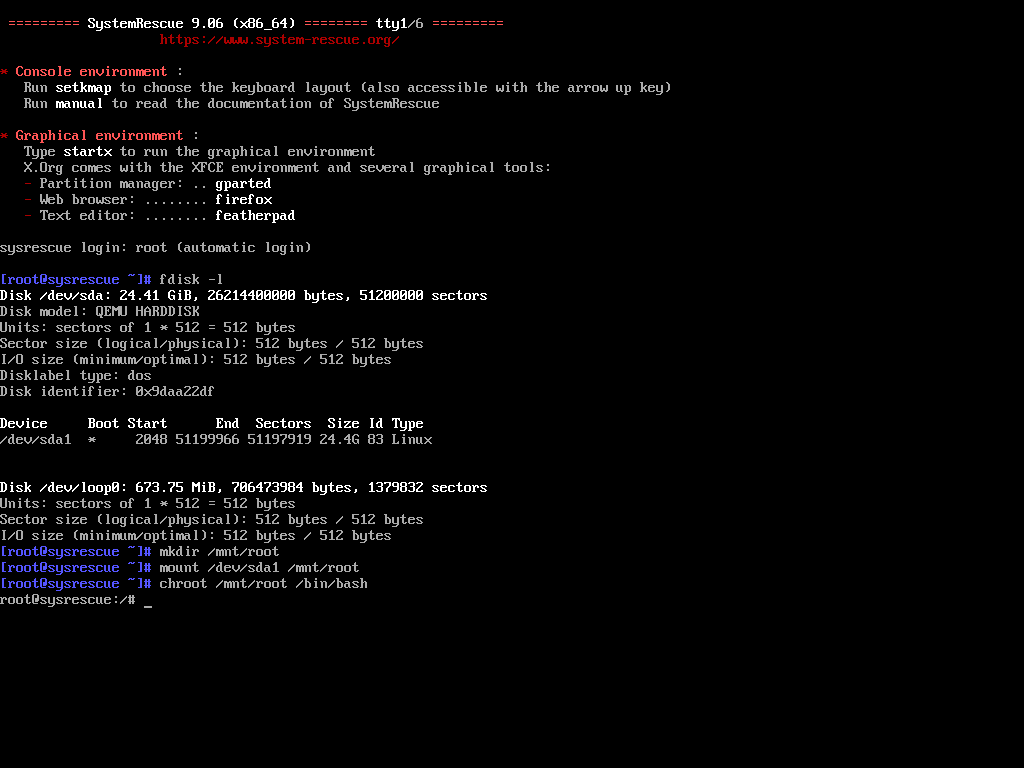
- Set a new password (must be entered twice, characters are not displayed on the screen):
passwd root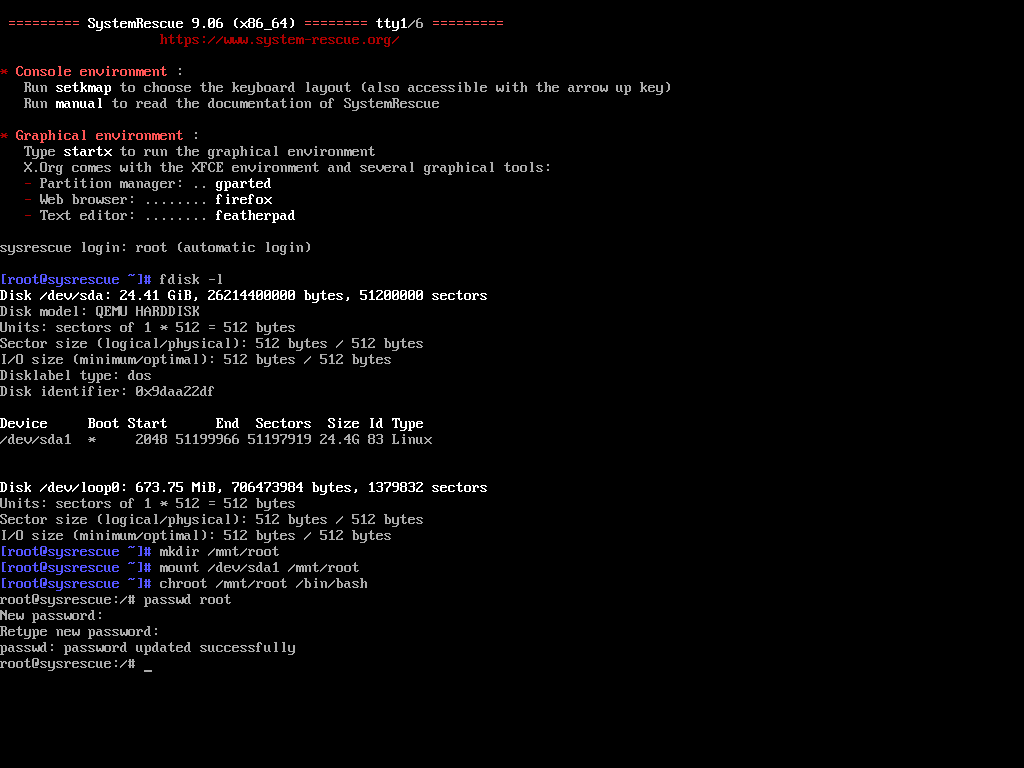
- Disconnect the SystemRescue image.
- Reboot server.