Gérer les cookies utilisés pour la publicité, tels que la personnalisation des annonces, le remarketing et l’analyse des performances des annonces.
2.4.1.16. Site builder
About builder
The site builder is powered by WordPress with licensed Divi theme (with Divi AI support). After selecting a template, the current version of WordPress and Divi theme is installed on the site. The theme is automatically activated and the selected template is installed. After installing the builder, the selected template can be changed to another one.
Along with the main theme, the Extra theme is also installed. It is not active by default, but can be activated in the admin panel.
The builder only works for sites located on our hosting. If you do not pay for hosting or transfer your site to another hosting provider, the functionality of the Divi theme will be lost.
Install builder
The builder can be used without a ready-made template
In Divi, instead of using ready-made templates, you can create pages from scratch using the visual editor. The theme also has very powerful functionality, similar to the Elementor Pro theme builder, which allows you to create headers, footers, post catalog pages, WooCommerce pages, etc. in the visual editor. To install the builder without a template, use the "Install builder" button on the template selection page or install it via the "CMS install" section.Bot protection can interfere with the installation of the builder
Before installation, check page protection and make sure that protection is not enabled for the URL/wp-admin/*. With protection enabled, installing the builder with a template may result in the error "Template installation error: Unable to determine WordPress configuration".
- Open the "Site builder" section.
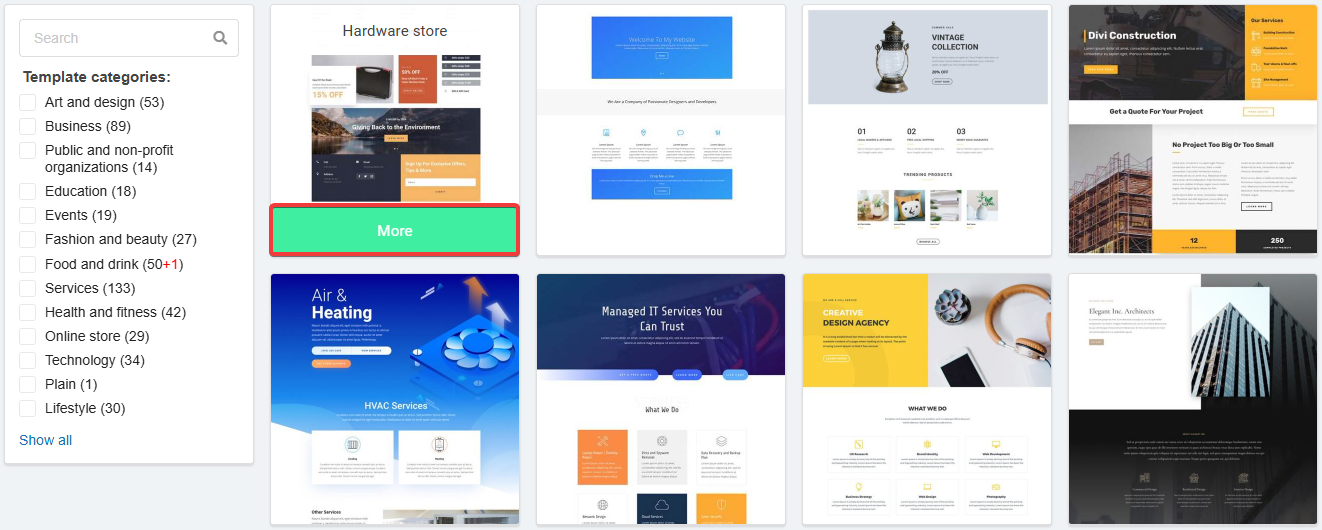
- Select a template and click "More":
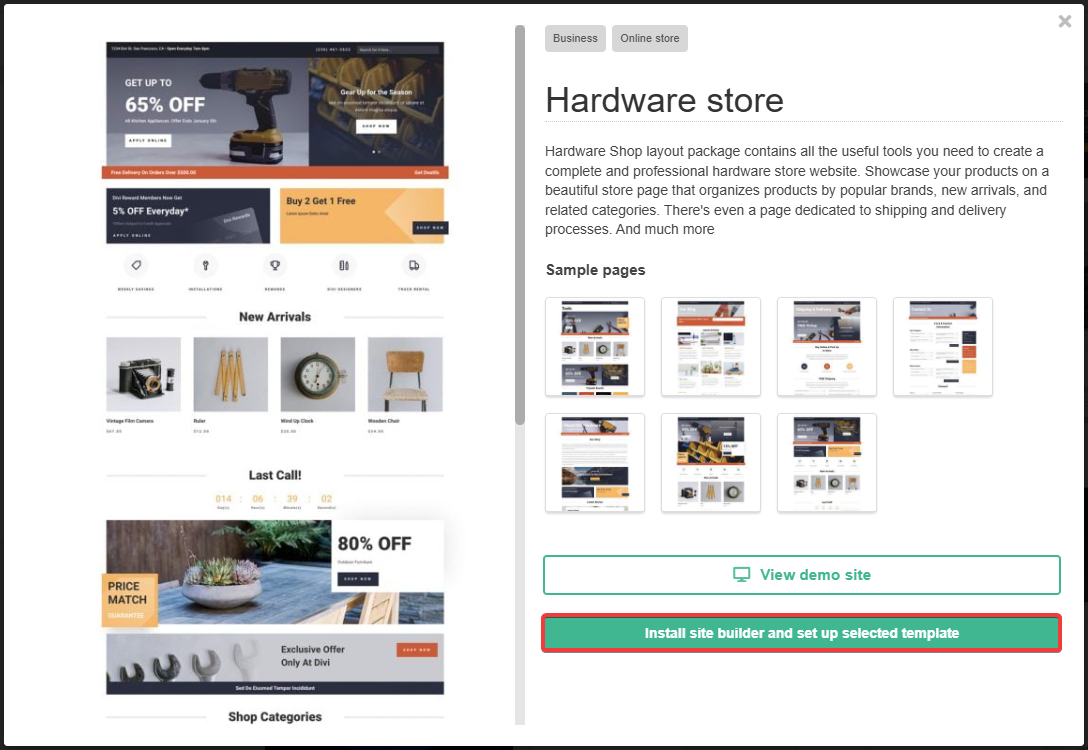
- Click "Install site builder and set up selected template" (using the "View demo site" button you can see how the template will look live):
- Fill out the form and click "Install":
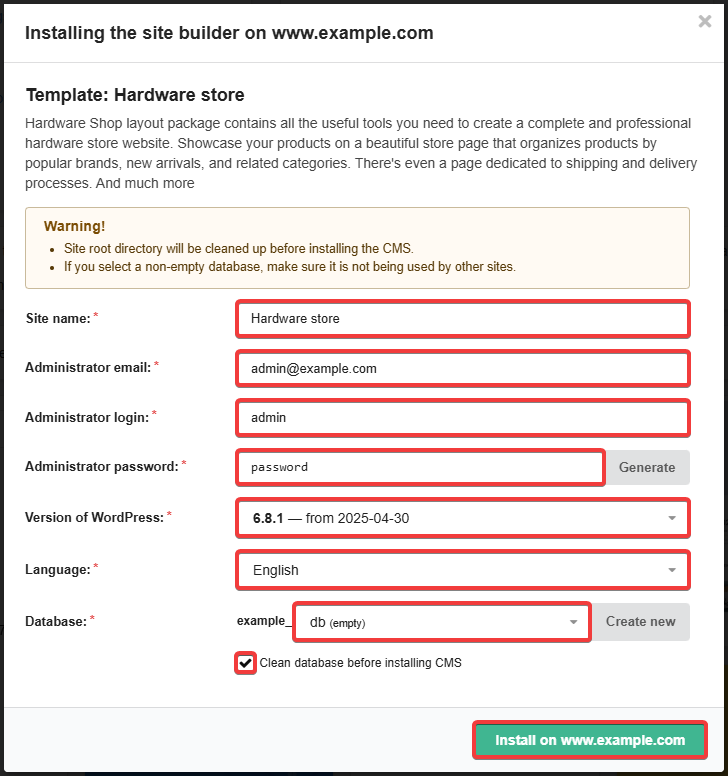
- "Site name" — arbitrary name of your site (by default, the name of the selected template).
- "Administrator email" — administrator email (by default, the account email).
- "Administrator login" — administrator login (by default
admin); - "Administrator password" — administrator password (you can create a random one using the "Generate" button).
- "Version of WordPress" — CMS version (by default the newest).
- "Language" — builder language (by default as in the account).
- "Database" — the database to which the site will be connected (you can create a new one with the "Create new" button).
- "Clean database before installing CMS" — if enabled, the selected database will be cleared.
- Wait for the installation to complete and check that the site is working properly.
Change template
Attention!
When you change the template on the site, all content (pages, posts, files) will be deleted.- Open the "Site builder" section.
- Select a template and click "More":
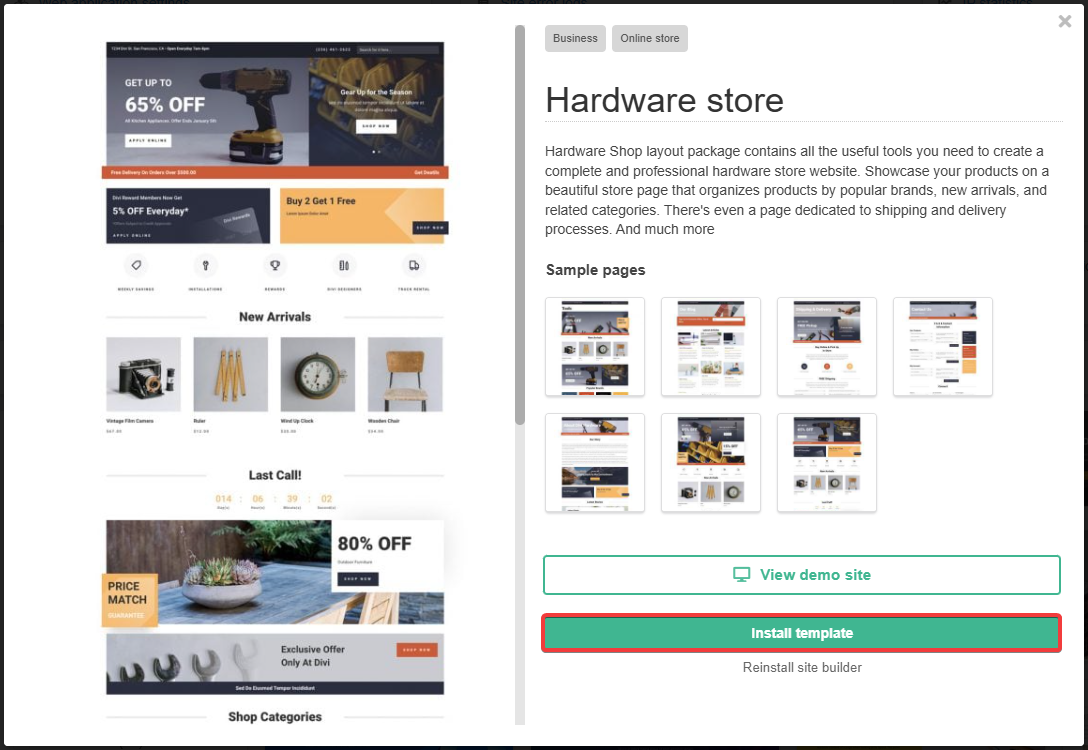
- Click "Install template" and confirm the operation:
- Wait for the installation to complete and check that the site is working properly.
Admin panel
To open the admin panel of the site in the "Site builder" section, click "Admin panel WordPress Divi" or in the address bar of the browser to the name of the site add wp-admin to get an address like example.com/wp-admin.
To view the site admin panel credentials specified during installation of the site builder, in the "Site builder" section click "CMS parameters".
Additional
Work without domain
You can check the builder's work without a working domain. To do this, after installation, you need to enable the service address and configure WordPress to use it.
Change logo
- In the side menu, select "Divi → Theme Options".
- Switch to the "General → General" tab.
- In the "Logo" row, click "Upload" and upload your logo.
- Select the uploaded logo and save your changes.
Alternatives
A site builder can mean:
- Content management systems (CMS).
- Specialized online services.
The former include systems such as WordPress, Joomla!, OpenCart, etc. These systems are supported on our hosting. Many of them can be installed automatically, while those that are not available for automatic installation can be installed manually. Detailed instructions for various CMS are available in the CMS section.
The second one includes services like Wix. With us, you can register a domain that you can connect to a site hosted on such a service. You can connect a domain to some services using ready-made presets.
(2)
Commentaires