Gérer les cookies utilisés pour la publicité, tels que la personnalisation des annonces, le remarketing et l’analyse des performances des annonces.
2.8.13. PHP error display and logging
PHP errors can be displayed directly on the site or logged for further analysis.
Depending on the internal structure of the site and the type of problem that has arisen, displaying or logging PHP errors may not always help to identify the causes of problems on the site. In some cases, it may be more useful to enable debug mode using the site's own tools (as in WordPress, Joomla!, PrestaShop), or manually adding debug directives to the code by a developer or specialist to track at what stage and for what reason the error occurs.
Display PHP errors
The PHP parameter error_reporting is responsible for the types of errors that are displayed.
- Open the "PHP settings" section.
- In the "error_reporting" field, select the desired error types and save the changes:
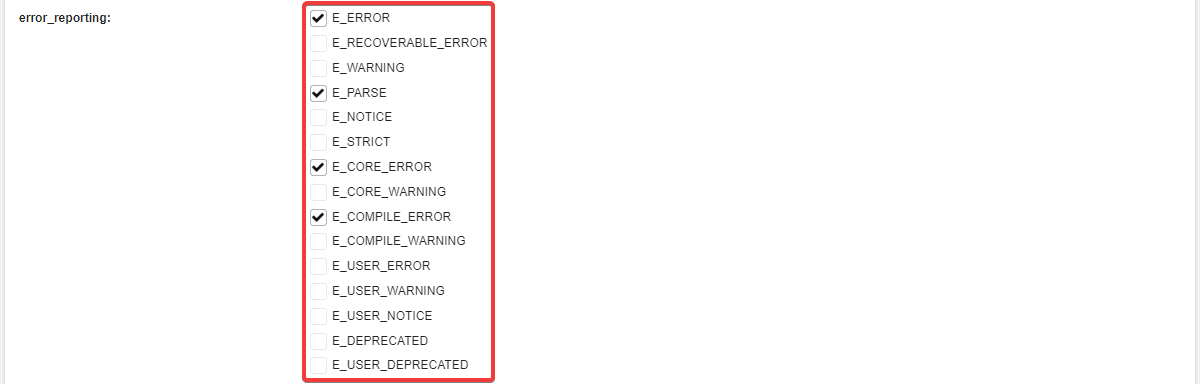
- Wait approximately 10-15 minutes for the changes to take effect.
Configure PHP error logging
PHP error logging can be performed in different ways — either using hosting facilities with viewing in the control panel, or at the level of site scripts with saving to a file.
Hosting facilities
Maximum log size — 100 MB
As soon as the log size exceeds 100 MB, logging is automatically disabled. To resume logging, you need to clear the log and re-enable logging.- Enable display of PHP errors of the desired type (you can select all).
- In the "PHP settings" section, enable "Enable error_log" and save the changes:

- Wait approximately 10-15 minutes for the changes to take effect.
- Reproduce the error on your site.
- Check for error entries in the PHP error log.
Site scripts
If you need to log PHP errors to a separate file, you can do this at the script level. For example, you can add the following code at the beginning of the very first script that is run:
ini_set("log_errors", 1);
ini_set("error_log", "/путь/к/логу/php-error.log");
As a result, if a PHP error occurs while this script is running, it will be recorded in the log at the specified path.