Gérer les cookies utilisés pour la publicité, tels que la personnalisation des annonces, le remarketing et l’analyse des performances des annonces.
2.19.2.2. Analyze logs in GoAccess
GoAccess is a free, open-source command-line tool for viewing and analyzing web server logs. It is designed for Linux and macOS. On Windows, you can use its implementation, CowAxess, which runs via Cygwin or directly via WSL.
To analyze logs using GoAccess, you must first download them.
Interactive mode
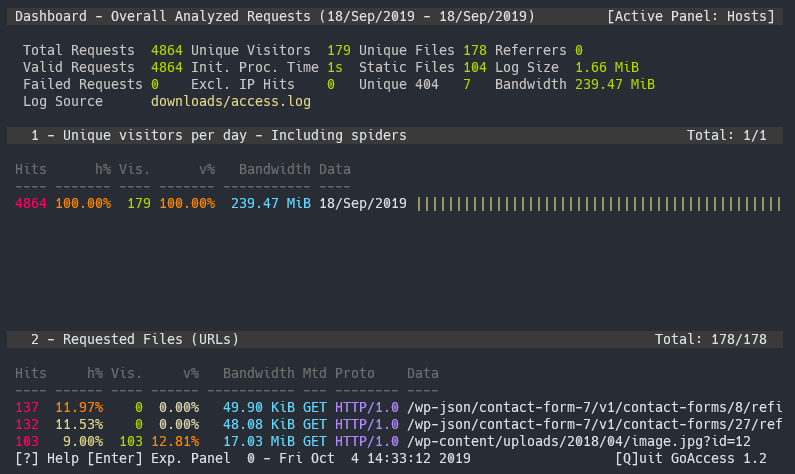
Launch
- In the console, run the following command, replacing
path/to/access.logwith the path to the log file:goaccess path/to/access.logIf you need to analyze multiple logs at once, separate their paths with a space:
goaccess path/to/access.log path/to/access.log.1 - Use the arrow keys and the Space key to select "NCSA Combined Log Format" and press Enter.
- Wait for the log processing to finish.
Modules
- "Unique visitors per day - Including spiders" — the number of unique visitors per day, including web crawlers.
- "Requested Files (URLs)" — requested URLs.
- "Static Requests" — requests for static files.
- "Not Found URLs (404s)" — requests for which the server returned a
404response. - "Visitor Hostnames and IPs" — IP addresses, countries, and hostnames of visitors.
- "Operating Systems" — the operating systems used by visitors.
- "Browsers" — browsers used by visitors.
- "Time Distribution" — the distribution of requests by time of day.
- "Virtual Hosts" — virtual hosts. This module will only be displayed if the log contains the relevant information.
- "Referrers" (disabled by default) — the URLs from which visitors came.
- "Referring Sites" — the sites from which visitors came.
- "Keyphrases" (disabled by default) — key phrases from Google search queries and the Google cache (only HTTP queries are supported).
- "HTTP Status Codes" — server responses.
- "Remote User" — identifiers of users requesting files via HTTP authentication. This module will only be displayed if the log contains the relevant information.
- "Geo Location" — countries of visitors.
Control keys
- F1 or h — help.
- F5 — updating information in the main window.
- q — exiting the program or minimizing the active window.
- o or Enter — expanding of the active module.
- 0…9 and Shift+0…5 — activation of the module by its number (Shift must be held down for modules numbered 10 or higher).
- ↑ — scrolling up the contents of the main window.
- ↓ — scrolling down the content of the main window.
- j — moving the cursor down within the expanded module.
- k — moving the cursor up within the expanded module.
- c — setting or changing the color scheme.
- Ctrl+f — scrolling within the active module by one screen forward.
- Ctrl+b — scrolling within the active module to go back one screen.
- Tab — switching to the next module.
- Shisft+Tab — switch to the previous module.
- s — configuring sorting for the active module.
- / — searching across all active modules (regular expressions can be used).
- n — searching for the next match.
- g — going to the first element of the module or to the top of the main window.
- Shift+G — going to the last item in the module or scrolling down the main window.
Generate HTML report
You can generate HTML reports in the control panel in the "GoAccess reports" section.
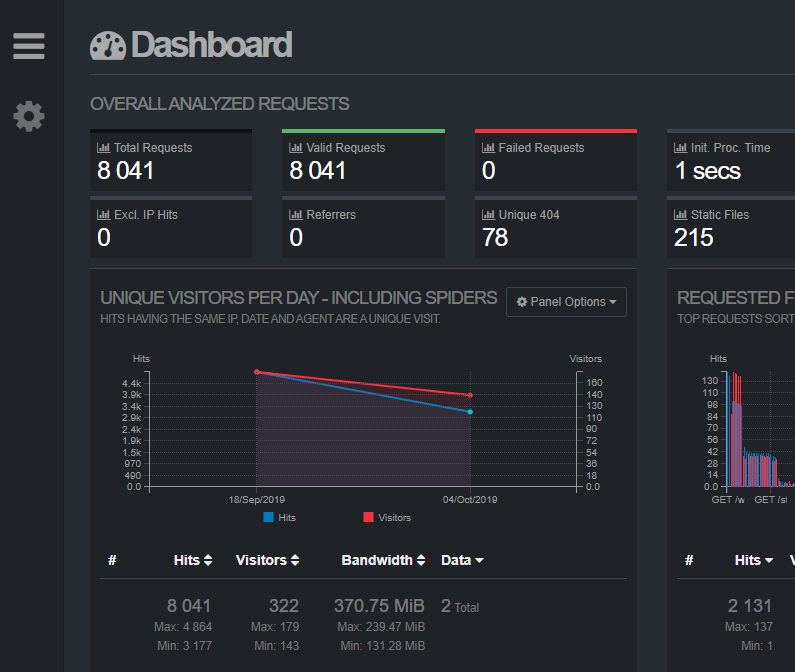
Prepare
Instead of editing the configuration file, you can also explicitly specify the format directly in the generation command by adding the following keys:
--log-format='%h %^[%d:%t %^] "%r" %s %b "%R" "%u"' --date-format='%d/%b/%Y' --time-format='%T'.
Before generating the HTML report, specify the log format, dates, and times in the GoAccess configuration file:
- Find the path to the GoAccess configuration file:
goaccess --dcf - Open the configuration file for editing:
nano path/to/the/configuration/file - Add three lines to it:
log-format %h %^[%d:%t %^] "%r" %s %b "%R" "%u" date-format %d/%b/%Y time-format %T - Save your changes by pressing Ctrl+O.
- Exit the editor by pressing Ctrl+X
Generate
To generate an HTML report, run the following command:
goaccess path/to/access.log -a -o path/to/report.htmlIn command:
path/to/access.log— path to the log file.path/to/report.html— the report name and the path where it should be saved.
Open the resulting file in any browser. The report will clearly display information on all available modules, with the option to customize the display.